
Roku is a popular web streaming device which is widely trending worldwide. It comes with more than four thousand streaming channels and gives you a most reliable and entertaining streaming with easy features too. Let’s move on our topic- How to screen mirror Roku from Phone? Screen mirror is connecting two devices i.e phone and tv. Watching phone’s screen in your tv’s big screen. This features a plus benefit and advantage which gives customer usage satisfaction too. Follow the below mentioned steps to screen mirror roku from phone.
Check your Roku Internet Quality
- Go to the Roku player homepage.
- Now, scroll down to the settings area.
- Into the settings area, make sure that the settings are set up properly.
- So, we will go to the Networks area and just make sure that you are connected to a good internet connection. Check that you are connected to your wireless router only as roku player needs a good internet quality to work best.
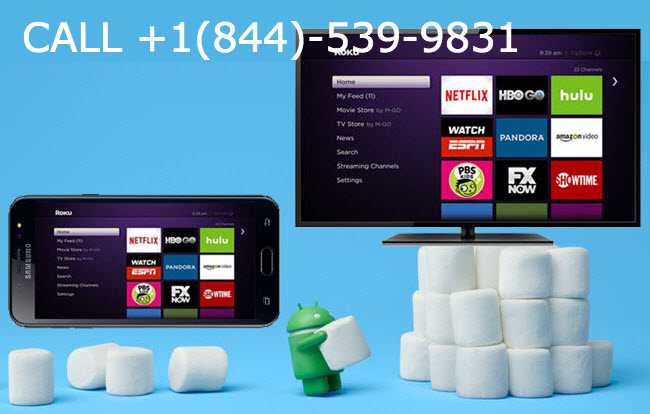
Screen Mirroring Roku from Phone
- Now, go to the settings again and scroll down to the Screen Mirroring option.
- In screen mirroring, go to screen mirroring mode.
- Inside screen mirroring mode, you’ll see few options. Click on Prompt (means when you start to try to mirror cast over to your Roku).
- Next thing we’ll do is go over your phone to start mirror casting process on your phone.
- In you phone, from the drop down options go to the settings area. Into the settings area go to the Bluetooth (device connection) and then we’re going to click on connection preferences.
- Now, we’ll go down and click cast and again we need to make sure we’re on the same internet connection (both with roku and phone). But once we find our roku player popping up in the cast area. We can go ahead and select that so our device can start communicating with our roku player.
- Next, when this prompt shows up then just click on allow and then it will take about a minute for it to boot up and get ready to go with that screen mirroring.
- Now, your phone is successfully connected to your Roku player and you can see your phone’s screen on your TV.
- If you are not able to see your screen properly then you can rotate your screen from your phone options and then enjoy the mirror screening feature.
Contact Roku Customer Support for screen mirror Roku from phone:
Roku Inc. has provided a number of ways in which the customers can contact the technical support of Roku. The customer service department of the company believes in helping out the customers in any situation with the best solution possible. Customers can contact the technical support via email, chat service or through the call. To contact them, you can call on their toll free number +1(833)-239-7926 or visit them on https://qubicletech.com/roku-customer-service-phone-number-1833-239-7926/